Workspaces & Teams
Organize your work and collaborate with your team using Firebuzz workspaces.
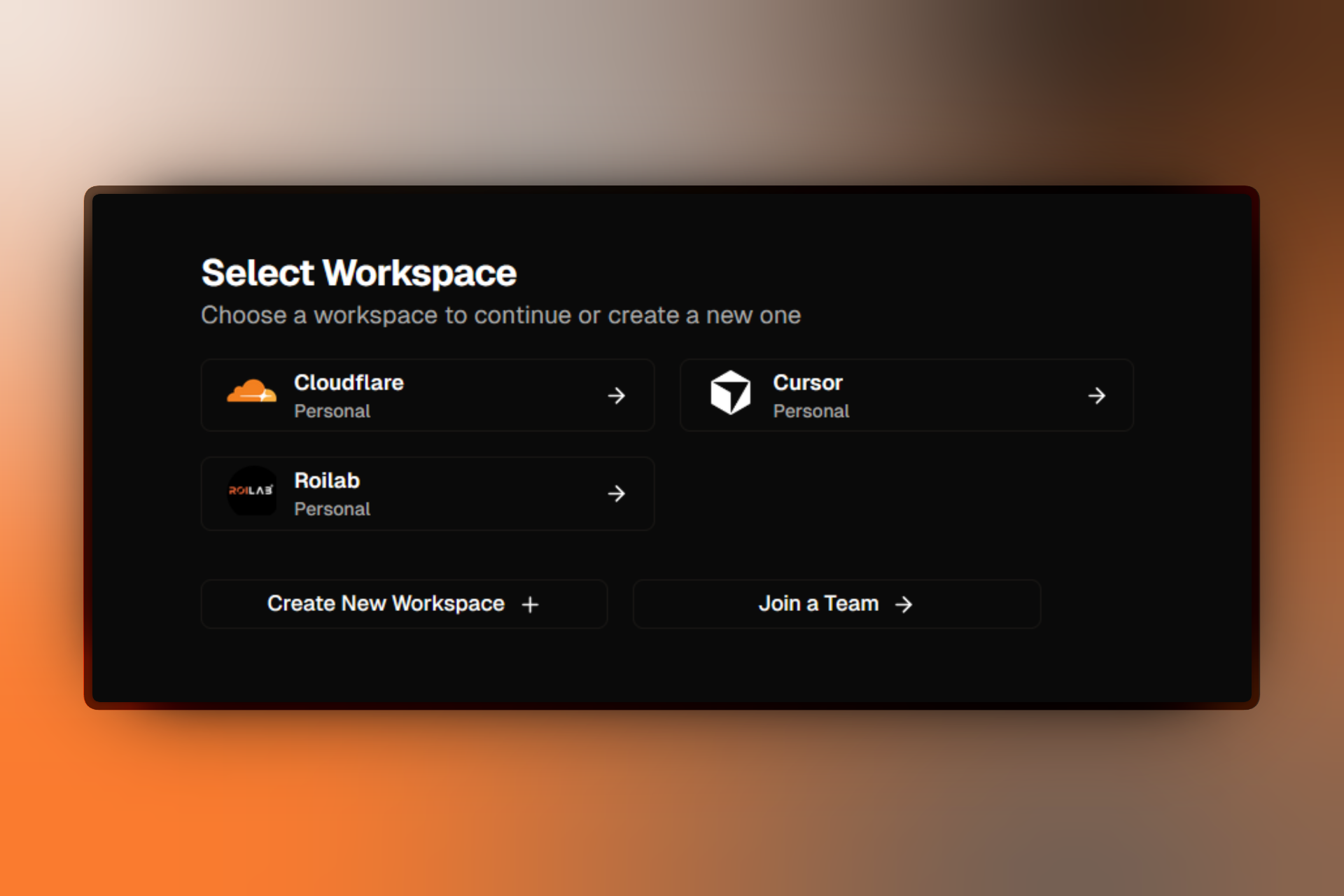
Workspaces are the foundation of organization in Firebuzz. Learn how to create and manage multiple workspaces, invite team members, and collaborate effectively across your organization.
What is a workspace?
Workspaces are the top-level container in Firebuzz. Each workspace has completely separate data, team members, projects, campaigns, and billing. Think of them as separate accounts for different clients, brands, or teams.
What You'll Learn
Workspace Management
Create, configure, and manage your workspaces.
Team Collaboration
Invite members, assign roles, and permissions.
Quick Links
Your Workspaces
Every user has access to at least one workspace and can belong to multiple workspaces:
Workspaces You Own
Your first workspace is created automatically when you sign up:
- You are the owner with full control
- Your subscription determines available features
- Your own projects and campaigns
- Full access to all settings and integrations
Workspaces You're Invited To
You can be invited to join other workspaces as a team member:
- Collaborate with other team members
- Role-based access (Admin or Member)
- Shared brand library and templates
- Access depends on role assigned by workspace owner
Learn about team collaboration →
Switching Between Workspaces
Switch between workspaces to access different teams, manage multiple clients, or separate personal and work projects.
Common Scenarios
You might need multiple workspaces for:
- Agency work - Separate client projects with distinct billing
- Multiple brands - Isolate campaigns and brand assets
- Testing environments - Safe sandbox for development
How to Switch
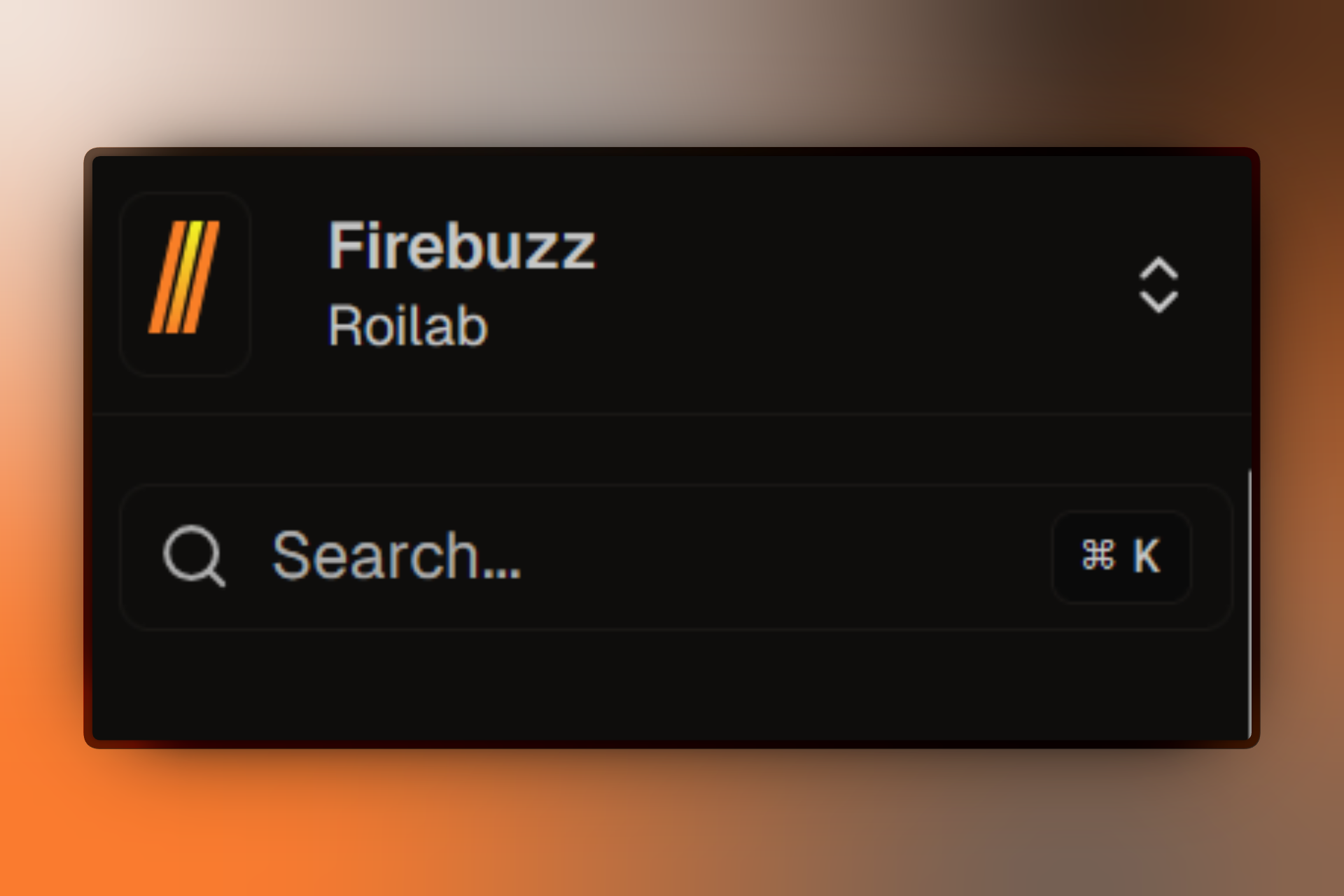
- Click the project switcher in the top-left corner of the sidebar
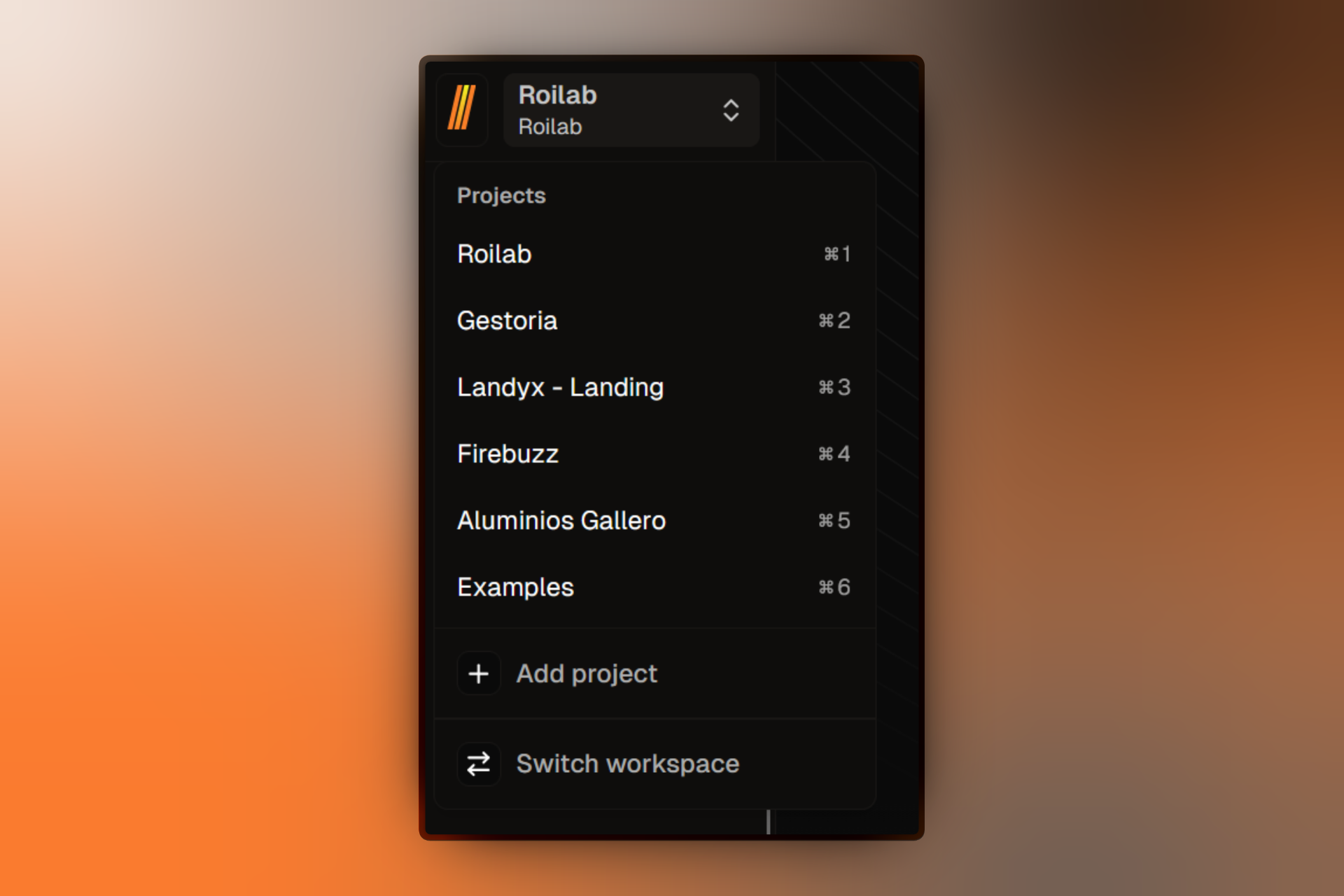
- Select Switch workspace at the bottom of the dropdown menu
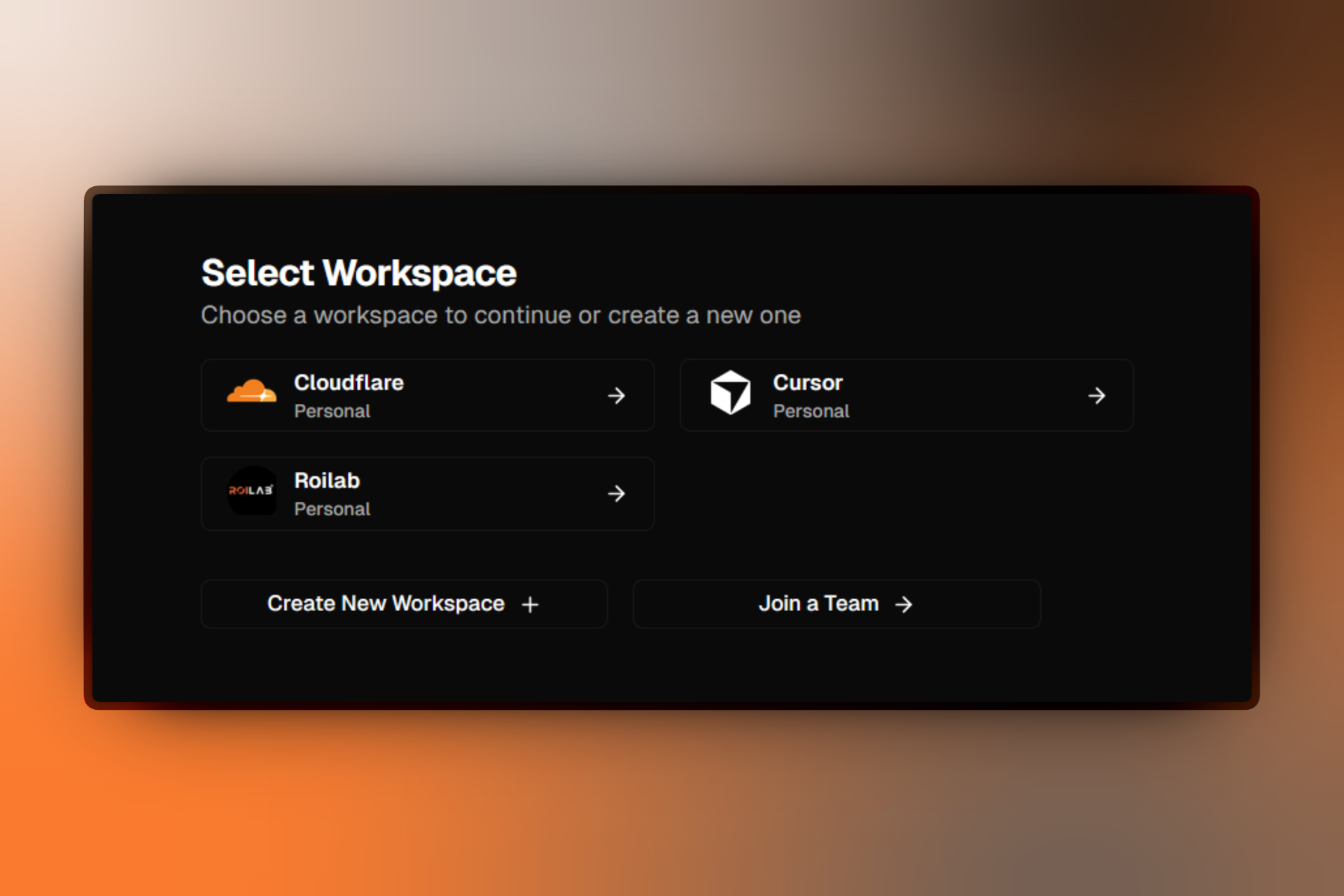
- Choose the workspace you want from the selection page
After switching:
- You're redirected to select a project in the new workspace
- All data shown is from the new workspace context
- Your previous project selection is cleared
Visual confirmation
Always check the workspace name shown below your project name in the top-left corner before making changes or publishing campaigns.
Workspace Isolation
Workspaces are completely isolated from each other. Think of each workspace as a separate account.
What's Separate in Each Workspace
- Projects and campaigns
- Team members and roles
- Landing pages and forms
- Brand assets and templates
- Custom domains
- Analytics data
- Billing and subscription
- API keys and integrations
What Stays Consistent
- Your user account and email
- Personal preferences (theme, notifications)
- Login credentials
- Access to Firebuzz features
Each workspace bills separately
Every workspace requires its own subscription. Managing 3 workspaces means 3 separate subscriptions. If you don't need separate billing, use Projects within a single workspace instead.
Workspaces vs Projects
Choose the right organization method for your needs:
Use Multiple Workspaces When You Need:
- Separate billing for clients or brands
- Complete data isolation between organizations
- Different team members for each workspace
- Independent workspace settings
Use Projects Instead When You Need:
- Organize campaigns within the same team
- Share team members across all work
- Unified billing and subscription
- Easier collaboration across initiatives
Learn about creating projects →
Best Practices
Clear naming:
- Name workspaces after clients or brands ("Acme Corp", "Marketing Agency")
- Avoid generic names like "Workspace 1"
Stay organized:
- Keep a maximum of 3-5 active workspaces
- Leave workspaces you no longer need
- Verify which workspace you're in before publishing
Efficient navigation:
- Open each workspace in a separate browser tab or window
- Bookmark frequently used project pages
- Always check the workspace name in the top-left before making changes
FAQ
Troubleshooting
For common issues when navigating or switching workspaces, see Workspace Switching Issues.
Related Resources
Workspace Management:
- Creating Workspaces - Set up new workspaces
- Workspace Settings - Configure workspace preferences
- Deleting Workspaces - Permanently remove workspaces
Team Collaboration:
- Inviting Team Members - Add collaborators to workspaces
- Understanding Roles & Permissions - Learn about access levels
- Managing Team Members - Oversee your team
Getting Started:
- Core Concepts - Understand workspaces, projects, and campaigns
- Creating Projects - Organize campaigns within workspaces
- Quickstart Guide - Build your first campaign