Workspace Settings
Customize your workspace name, logo, and identity across Firebuzz.
Customize your workspace name and logo to reflect your brand. Your workspace identity appears in the sidebar, workspace switcher, and throughout Firebuzz.
Only workspace Owners and Admins can access workspace settings. Members cannot view or change these settings.
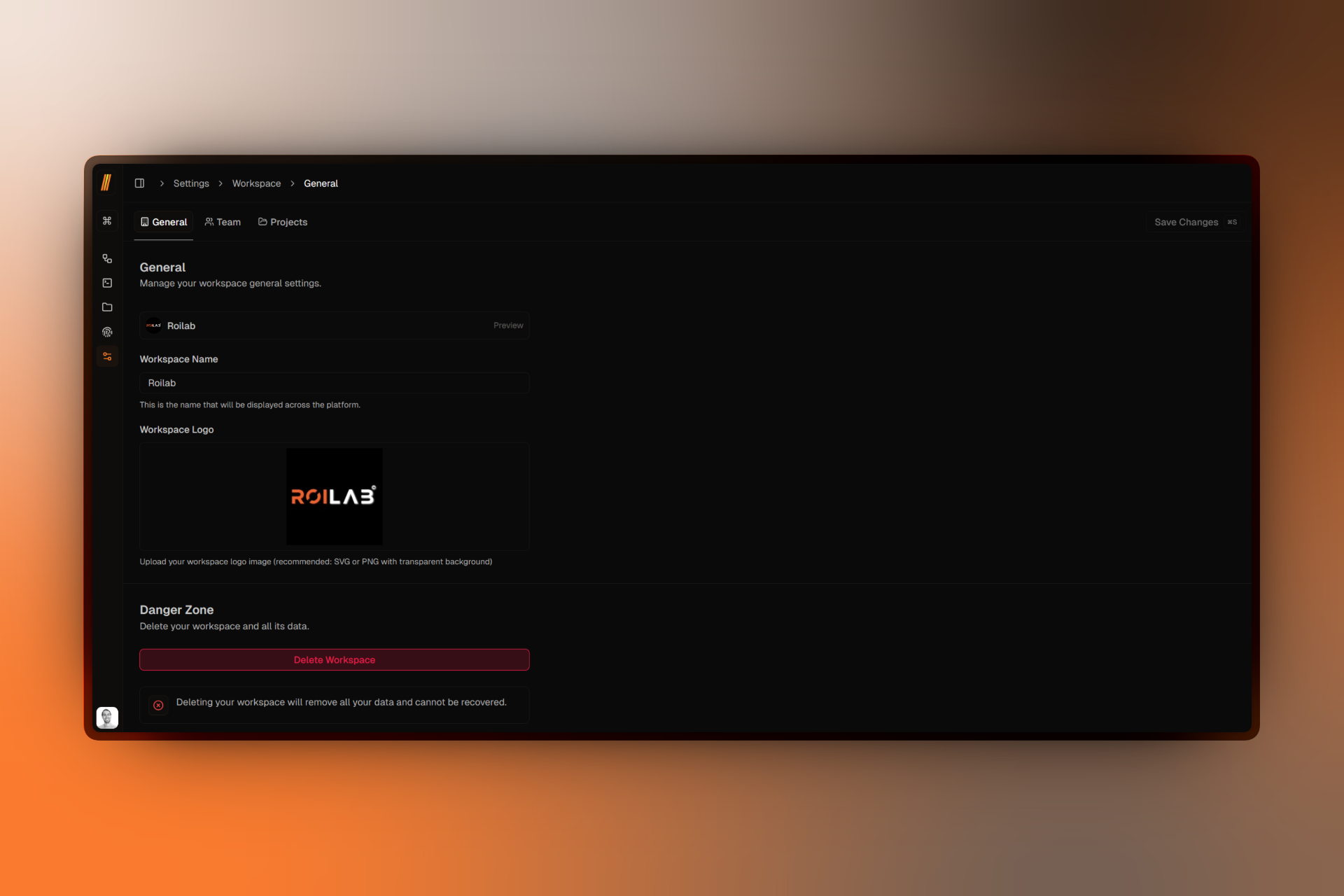
Accessing Settings
- Click Settings in the sidebar
- Select Workspace
- Click General
Workspace Preview
A live preview shows how your workspace appears in the sidebar and switcher. It updates automatically as you type or upload a logo.
If no logo is set, Firebuzz displays the first two letters of your workspace name as a fallback.
Changing Workspace Name
- Find the Workspace Name field
- Enter your new workspace name
- Click Save Changes⌘S
Use your company or team name. Keep it clear and recognizable (2-4 words is ideal).
Updating Workspace Logo
Upload from Computer
- Click the Workspace Logo upload area
- Select Upload tab
- Choose your logo file (SVG or PNG recommended)
- Click Save Changes⌘S
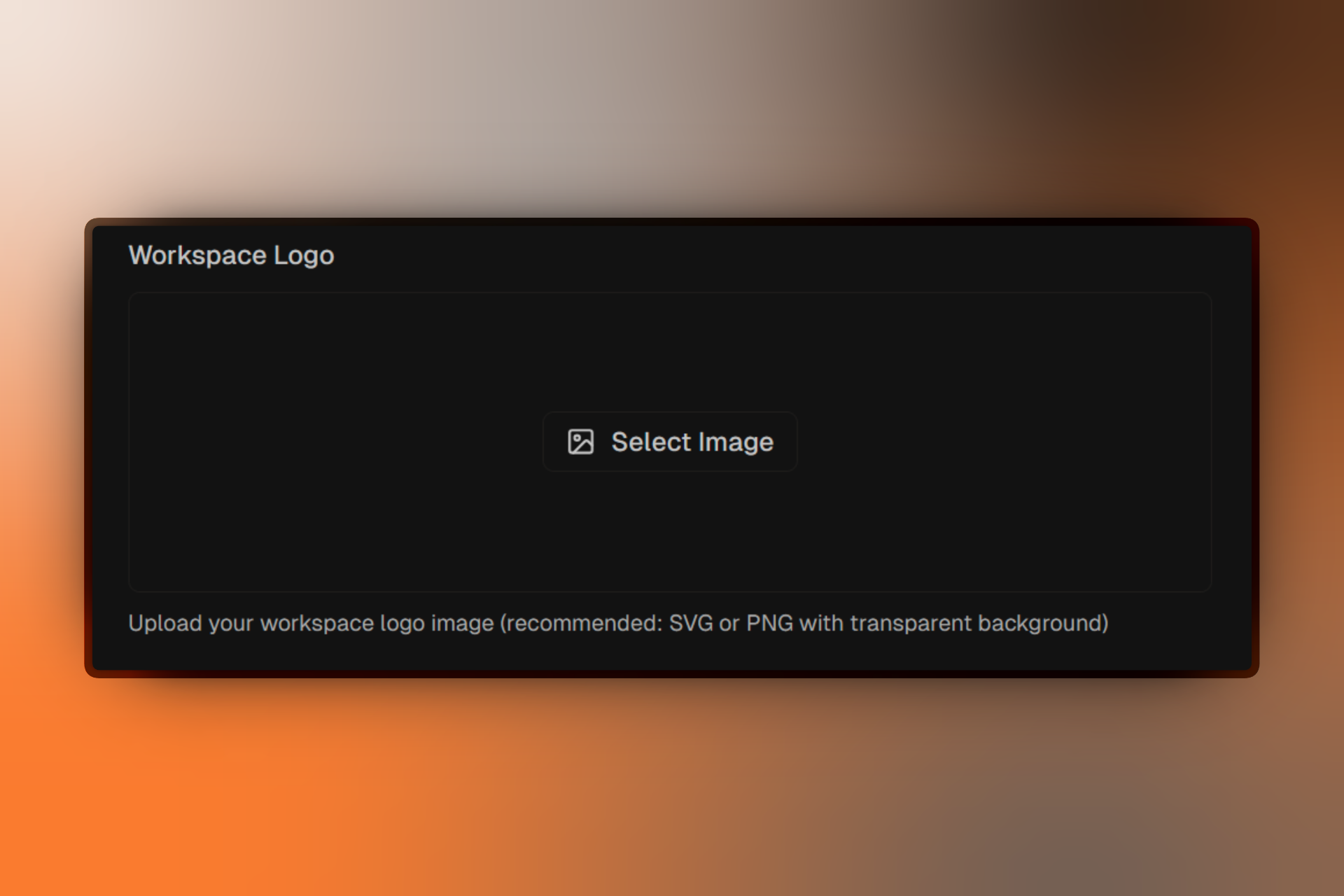
Recommended specifications:
- Format: SVG or PNG with transparent background
- Size: Square (1:1 ratio), at least 256×256px
- File size: Under 5MB
SVG logos scale perfectly at any size. PNG with transparent backgrounds blend seamlessly with the interface.
Select from Gallery
If you've uploaded images before, reuse them as your logo:
- Click the Workspace Logo upload area
- Select Gallery tab
- Click an image to select it
- Click Save Changes⌘S
Remove Logo
To use initials instead of a logo:
- Click the X button on your current logo preview
- Click Save Changes⌘S
The workspace displays the first two letters of your workspace name.
Where Your Logo Appears
Your workspace logo is visible in:
- Sidebar: Next to your workspace name
- Workspace Switcher: When choosing between workspaces
- Team Invitations: In emails sent to new members
Saving Changes
Changes are not saved automatically. Always click Save Changes⌘S or press ⌘S (Mac) / Ctrl + S (Windows) to apply your updates.
The button is only enabled when you've made changes.
Deleting Your Workspace
Deleting your workspace permanently removes all data, including projects, campaigns, forms, and landing pages. This action cannot be undone.
To delete your workspace:
- Scroll to the Danger Zone section
- Click Delete Workspace
- Type
DELETE MY WORKSPACEto confirm - Click Delete to permanently remove your workspace
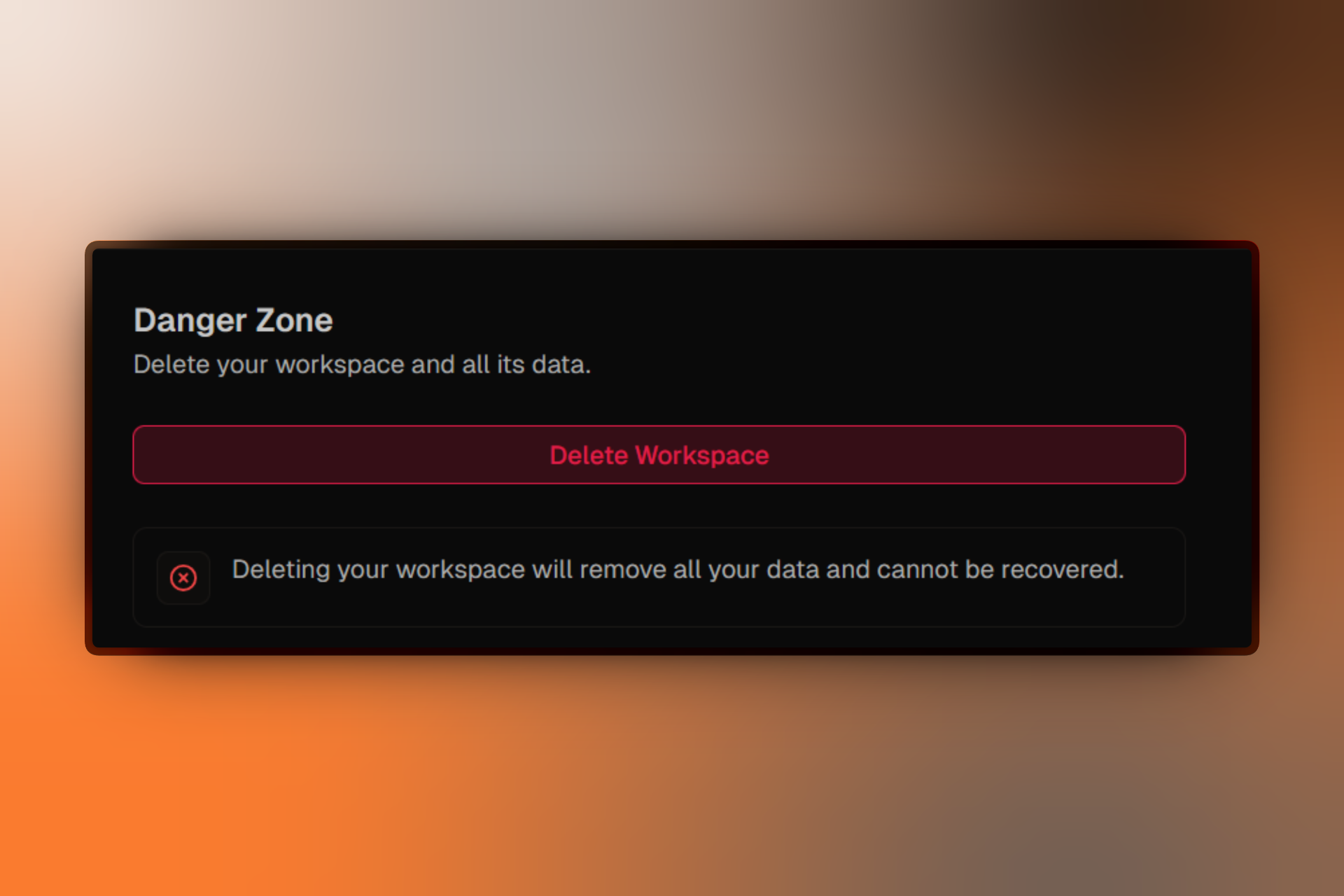
For complete details on workspace deletion, what happens to your data, and alternatives, see Deleting Workspaces.