Managing Campaigns
Learn how to edit, organize, and delete your campaigns in Firebuzz.
Once you've created campaigns, you'll need to manage them over time—editing content, reviewing performance, and eventually archiving or deleting completed campaigns.
Viewing Your Campaigns
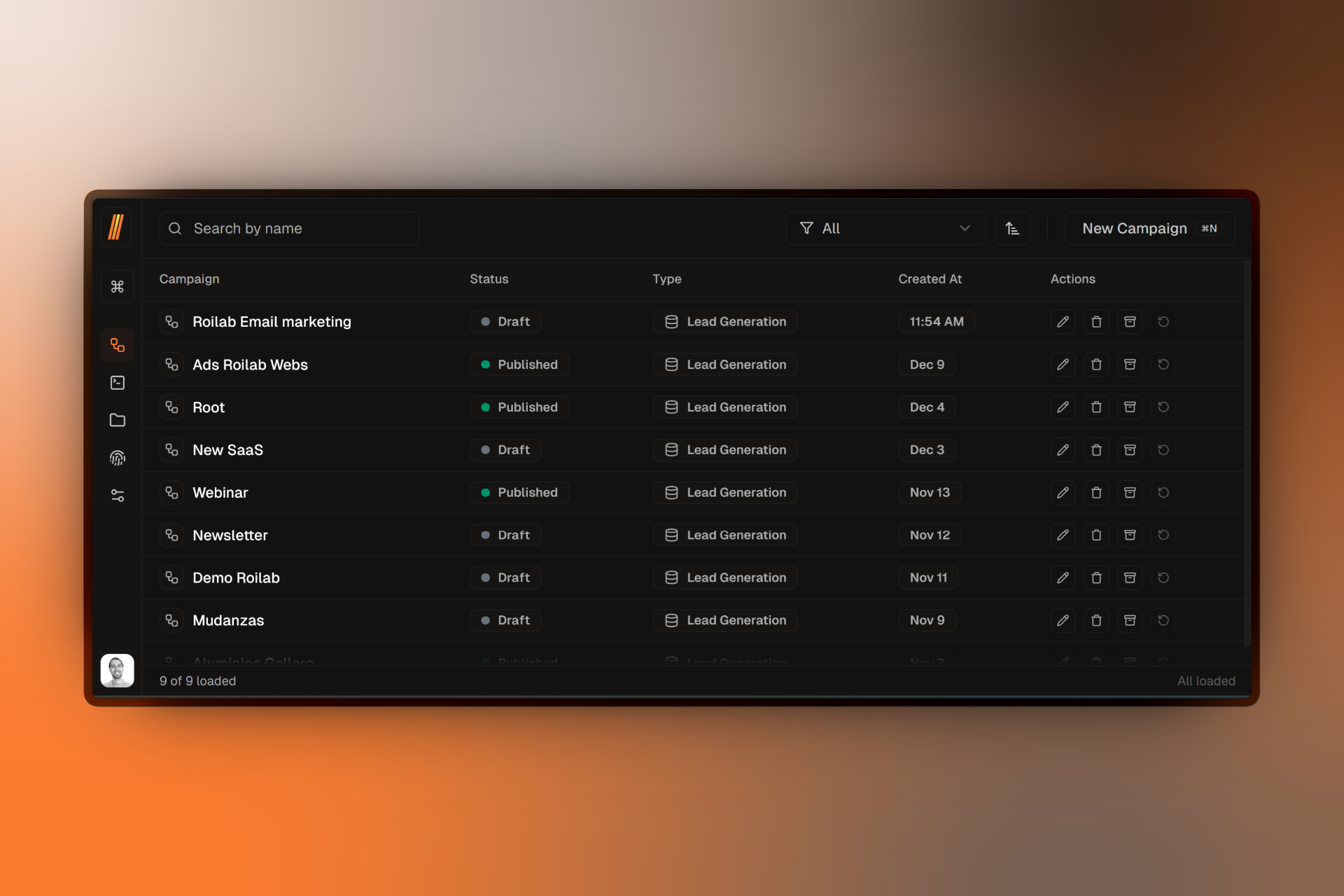
Navigate to the Campaigns section in your project sidebar to see all your campaigns. The campaign list shows:
- Campaign title and type
- Creation date
- Draft Current status (Draft, Preview, Published, etc.)
Filtering and Sorting
Use the controls at the top of the campaign list to:
- Search — Find campaigns by name
- Filter by Type — Show only Lead Generation or Click Through campaigns
- Sort — Order by newest or oldest first
Opening a Campaign
Click on any campaign row to open it in the Flow Builder. From there you can:
- Edit the campaign flow (add segments, A/B tests, variants)
- Configure campaign settings
- View analytics
- Publish or schedule the campaign
Editing Campaign Details
From the Campaign List
The campaign list is for viewing only. To edit campaign details, you need to open the campaign.
From the Flow Builder
- Open the campaign
- Click anywhere on the canvas background to deselect all nodes
- The Campaign Overview panel appears on the right
- Edit the title, description, or slug inline
Changes to campaign details are saved automatically when you click outside the input field or press Enter.
Campaign Statuses
Understanding campaign statuses helps you manage your campaign lifecycle:
Draft
Campaign is being built. Not visible to visitors. You can make any changes.
Preview
Published to a preview URL for testing. Not visible on production domains.
Scheduled
Set to automatically publish at a future date and time.
Published
Live and visible to visitors on your production domains.
Completed
Marked as finished. Still visible but indicates the campaign has concluded.
Deleting Campaigns
Deleting a campaign is permanent. All campaign data, including analytics, A/B test results, and visitor data, will be permanently removed. This action cannot be undone.
How to Delete
- Open the campaign in the Flow Builder
- Access the campaign menu (three dots icon in the header)
- Select Delete Campaign
- Confirm the deletion when prompted
What Gets Deleted
- The campaign configuration and all nodes
- All A/B test data and results
- All visitor analytics and conversion data
- Any scheduled publishing (cancelled automatically)
What's Preserved
- Landing pages used in the campaign (they remain in your project)
- Your project domain configuration
Completing Campaigns
When a campaign has achieved its goal or reached its natural end, you can mark it as completed:
- Open the campaign
- Click the status button in the campaign header
- Select Mark as Completed
Completed campaigns:
- Remain published and visible to visitors
- Stop being actively monitored
- Are clearly labeled in your campaign list
- Can be reactivated if needed
Reactivating a Completed Campaign
- Open the completed campaign
- Click the status button
- Select Reactivate Campaign
The campaign returns to Published status and resumes normal operation.
Best Practices
Use Clear Naming
Include dates, goals, or audiences in campaign names for easy identification (e.g., "Summer Sale 2024 - Email Subscribers").
Complete Don't Delete
Mark finished campaigns as completed instead of deleting them. This preserves valuable historical data.
Review Before Deleting
Always check campaign analytics before deletion. You might want to export or note important insights first.