Campaign Settings
Configure your campaign's primary goal, GDPR compliance, and custom conversion events.
Campaign settings let you fine-tune how your campaign tracks conversions, handles user privacy, and measures success. Access these settings from the campaign overview panel.
Accessing Campaign Settings
- Open your campaign in the Flow Builder
- Click anywhere on the canvas background (deselect all nodes)
- The Campaign Overview panel appears on the right side
- Scroll down to find the settings sections
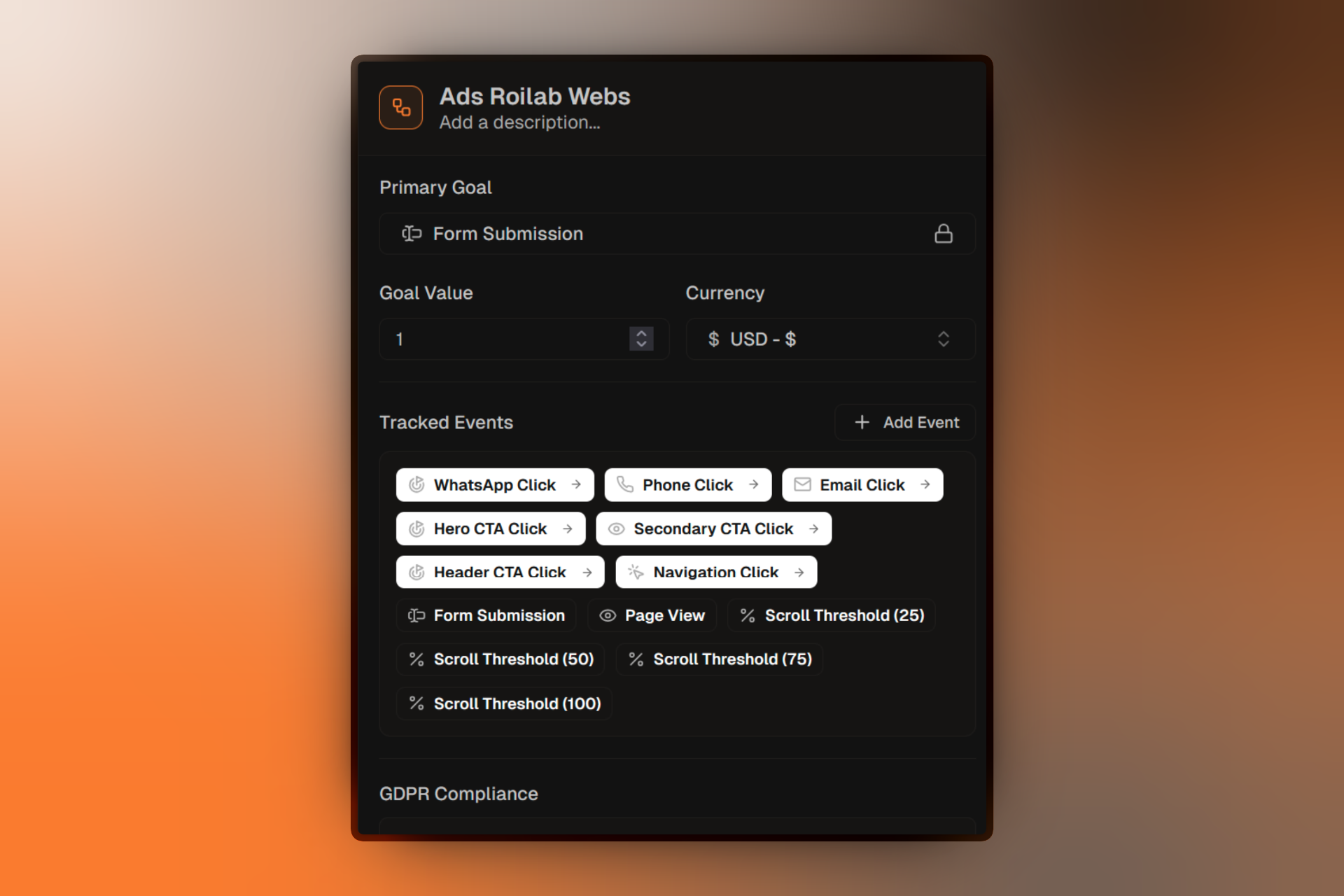
Primary Goal
The primary goal determines how your campaign measures success. This affects which metric is highlighted in analytics and used to determine A/B test winners.
For Lead Generation campaigns, the default goal is "Form Submission." For Click Through campaigns, it's "CTA Link Click."
Available Goals
Conversion Goals:
- Form Submission — Tracks when visitors submit a form (Lead Generation campaigns)
- CTA Link Click — Tracks clicks on your call-to-action button (Click Through campaigns)
- External Link Click — Tracks clicks on external links
Engagement Goals:
- Page View — Tracks page views generated by the campaign
- Scroll Threshold — Tracks scroll depth (25%, 50%, 75%, or 100%)
Custom Goals:
- Custom Events — Create your own conversion or engagement events
Goal Value
Optionally assign a monetary value to each conversion. This helps you calculate ROI and compare campaign performance.
Goal Value:Custom Events
Custom events let you track specific user interactions beyond the built-in goals. Use them to measure micro-conversions like video views, scroll depth, or button clicks.
Creating Custom Events
- In the Campaign Overview panel, find the Custom Events section
- Click Add Custom Event
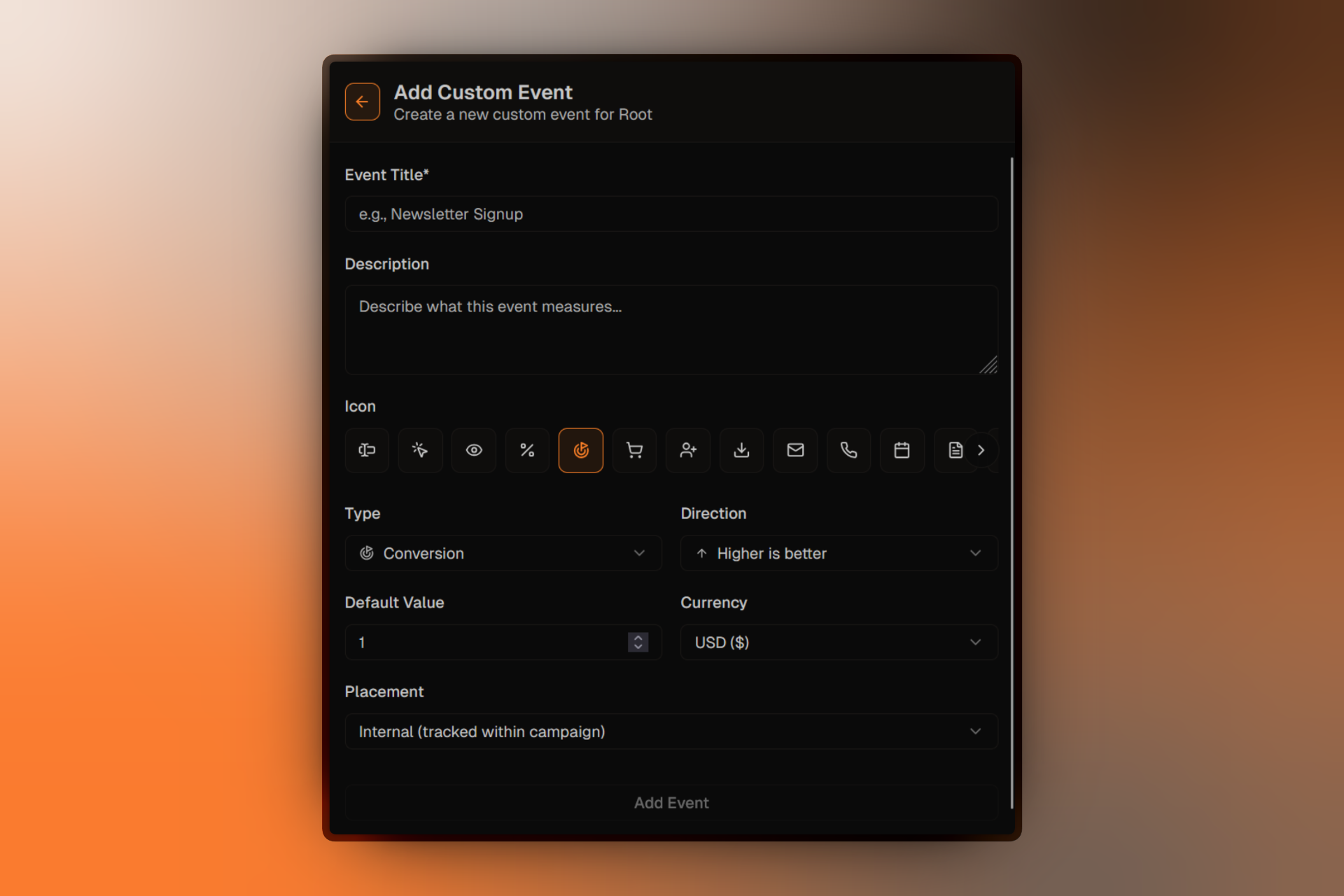
- Configure your event:
Use snake_case for event names (e.g., video_watched, pricing_viewed). This makes them easier to use in analytics integrations.
Event Types
- Click — Triggered when an element is clicked
- View — Triggered when an element becomes visible
- Submit — Triggered when a form is submitted
- Custom — Triggered via JavaScript code
GDPR Compliance
Toggle GDPR compliance to enable cookie consent management for your campaign.
Enable GDPR ComplianceWhen enabled, a consent banner appears to visitors, allowing them to accept or reject cookies and tracking.
For detailed configuration including geo-location detection, localization, and legal document URLs, see GDPR Configuration.
Campaign Information
Editing Title and Description
You can update your campaign's title and description directly from the overview panel:
- Click on the title or description text
- Make your changes
- Click outside the field or press Enter to save
Editing the Slug
Changing the slug will change your campaign's URL. Existing links will stop working.
- Find the Slug field in the overview panel
- Enter the new slug
- Click outside the field to save
CTA Link (Click Through Campaigns)
For Click Through campaigns, configure where visitors are redirected when they click your CTA:
CTA Link:Make sure to include the full URL with https://. The URL is validated to ensure it's properly formatted.