Flow Builder
Use the visual Flow Builder to design campaign flows with segments, A/B tests, and landing page variants.
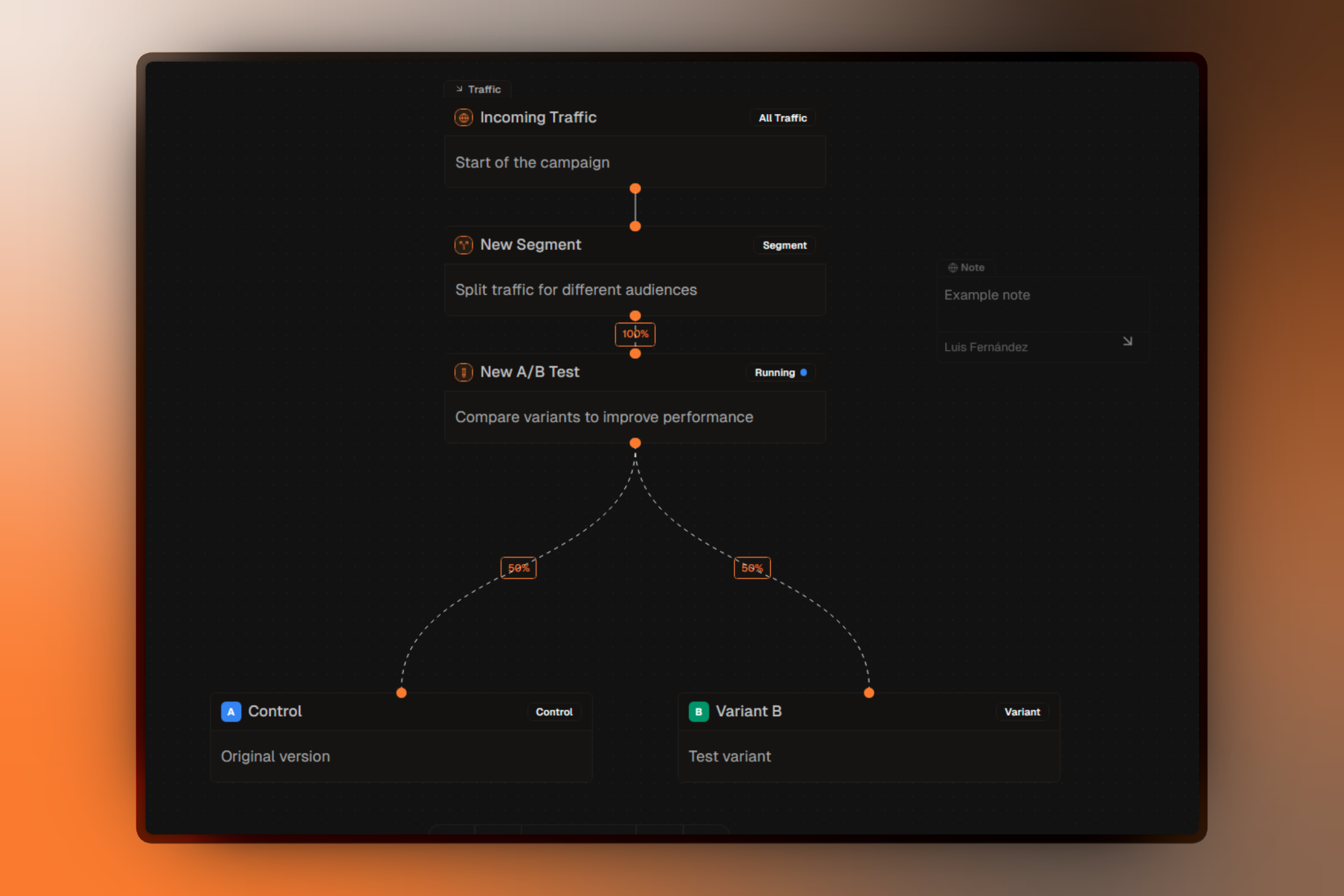
The Flow Builder is a visual canvas where you design how visitors experience your campaign. By connecting nodes, you create automated flows that segment your audience, run experiments, and serve high-converting landing pages.
Core Concepts
The Flow Builder uses three primary elements to construct your marketing funnel:
- Nodes — Functional components like Traffic entry, Segments, and A/B Tests.
- Edges — The lines connecting nodes, representing the path visitors take.
- Panels — Configuration drawers that open when a node is selected.
The Waterfall Logic: Traffic flows from top to bottom. A visitor enters at the Traffic node and is evaluated against Segments in priority order until they match a rule or reach the default destination.
Flow Hierarchy
Every campaign follows a strict hierarchy. You cannot skip levels—for example, a Variant must always live within an A/B Test.
Traffic Node (The Entry)
    └── Segment (The Audience)
            └── A/B Test (The Experiment)
                    ├── Variant A (Control)
                    └── Variant B (Challenger)
Node Types Overview
Deep dive into the purpose and capabilities of each node type.
Working with Nodes
Learn how to add, connect, move, and manage nodes on the canvas.
Node Quick Reference
1. Traffic Node
The root of your campaign. It represents all incoming visitors and allows you to set a Default Landing Page for those who don't match any segment rules.
2. Segments
Logic gates that split your audience based on targeting rules (e.g., "Mobile Users" or "Visitors from UK").
3. A/B Tests
Experiments that run inside a segment to compare different landing page versions and find the winner based on conversions.
4. Variants
The actual landing pages shown to visitors. Each variant tracks its own performance metrics like exposures and conversion rate.
5. Notes
Non-functional annotations. Use these to document strategy, leave reminders for teammates, or explain complex logic.
Canvas Interaction
Navigation
- Pan — Click and drag the grid background.
- Zoom — Use your mouse wheel or pinch gesture.
- Auto-Fit — The canvas automatically centers and zooms to show your entire flow when opened.
Selecting & Editing
- Select — Click any node to open its configuration panel.
- Multi-select — Hold Shift and click multiple nodes to move them together.
- Reposition — Drag and drop nodes anywhere on the canvas.
Validation & Guardrails
The Flow Builder includes real-time validation to ensure your campaign is "Launch Ready." Each node displays a status indicator:
Valid Ready: Node is fully configured.
Error Action Required: Missing required fields or invalid connections.
Blocked Publishing: You cannot publish or update a campaign if any node shows a Error. Hover over the indicator on the node for specific fix instructions.