Managing Variants
Learn how to add, configure, and manage landing page variants in your A/B tests.
Variants are the individual landing pages that visitors see during an A/B test. Each variant receives a portion of the test traffic, and you compare their performance to find the best performer.
Understanding Variants
Every A/B test contains 2-5 variants:
- Control: Your baseline (typically the original or current page)
- Test Variants: Alternative versions you're testing
Traffic is split between variants based on the percentages you configure.
Default Variant Setup
When you create an A/B test, two variants are automatically created:
| Variant | Default Traffic | Role |
|---|---|---|
| Control | 50% | Baseline version (marked with star) |
| Variant B | 50% | First test variant |
Adding Variants
Adding a New Variant
- Select the A/B Test node in the Flow Builder
- Click the button below the A/B Test
- A new variant is added and traffic is automatically redistributed
Traffic redistribution example:
| Before | After Adding Variant C |
|---|---|
| Control: 50% | Control: 34% |
| Variant B: 50% | Variant B: 33% |
| — | Variant C: 33% |
Variant Limits
- Minimum: 2 variants (required for comparison)
- Maximum: 5 variants (to maintain statistical validity)
When you've reached 5 variants, the add button no longer appears. Consider running sequential tests instead of adding more variants.
Configuring Variants
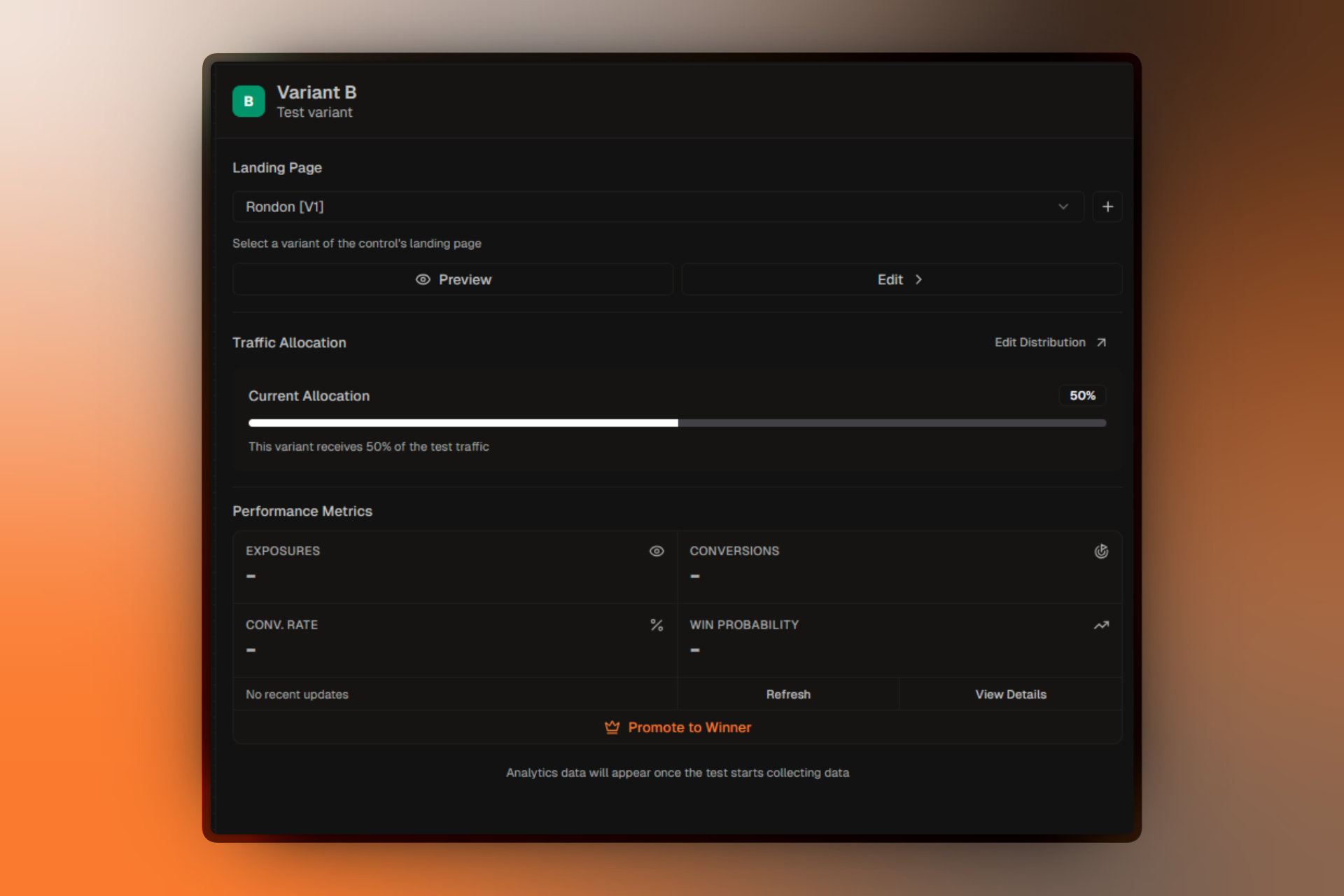
Select a variant node to open its configuration panel.
Basic Information
Title:Give each variant a descriptive name that explains what's different about it.
Good examples:
- "Control - Original Hero"
- "Blue CTA Button"
- "Short Form (3 Fields)"
- "Video Hero Version"
Document what's different about this variant for your team's reference.
Landing Page Assignment
Connect this variant to a landing page from your project. This is the page visitors will see when assigned to this variant.
You must assign a landing page to each variant before starting your A/B test. Variants without landing pages will cause validation errors.
Traffic Percentage
Traffic %:Control how much traffic this variant receives relative to others.
Guidelines:
- Percentages across all variants must total 100%
- Equal distribution is recommended for fair comparisons
- You can weight traffic toward promising variants if needed
Control Status
One variant must always be marked as the control. The control:
- Marked with a star icon
- Cannot be deleted
- Used as baseline for statistical comparison
Changing the Control
- Select the variant you want to make the control
- In the configuration panel, click Make Control
- The control status moves to the selected variant
Deleting Variants
When You Can Delete
- You have more than 2 variants
- The variant is not the control
- The A/B test is in Draft status (or the variant has no data)
When You Cannot Delete
- Only 2 variants remain (minimum required)
- The variant is marked as control
- The A/B test is running and has collected data
How to Delete
- Select the variant node
- Click the trash icon in the node header
- Traffic is automatically redistributed to remaining variants
Traffic redistribution example:
| Before Deletion | After Deleting Variant C |
|---|---|
| Control: 34% | Control: 50% |
| Variant B: 33% | Variant B: 50% |
| Variant C: 33% | — |
Adjusting Traffic Distribution
Manual Traffic Adjustment
- Select a variant
- Change the Traffic % value
- The system will warn you if totals don't equal 100%
Equal Distribution
To quickly reset to equal distribution:
- Add or remove a variant
- Traffic is automatically balanced equally
- Or manually set each variant to the same percentage
Weighted Distribution
Sometimes you want unequal distribution:
| Use Case | Distribution |
|---|---|
| Safe test of risky change | Control: 80%, Variant B: 20% |
| Bayesian optimization | Higher traffic to better-performing variants |
| Multi-armed bandit | Dynamic adjustment based on performance |
Start with equal distribution unless you have a specific reason to weight traffic differently.
Variant Validation
Each variant shows a validation status:
- Valid — Landing page assigned, ready to go
- Error — Missing landing page or configuration issue
Common validation errors:
- "No landing page assigned" — Select a landing page
- "Traffic percentage is 0" — Assign some traffic to this variant
- "Total traffic exceeds 100%" — Adjust percentages
Best Practices
Clear Naming
Name variants after what's different: "Green Button" not "Variant B"
Start Small
Begin with 2 variants. Add more only if you have enough traffic.
Equal Traffic
Use equal distribution unless testing risky changes.
Document Changes
Use the description field to note exactly what's different.