Preview Mode
Test your campaign in preview mode before making it live for real visitors.
Preview mode lets you test your campaign on a private URL before publishing to production. This ensures everything works correctly without risking the experience for real visitors.
What Is Preview Mode?
When you publish to preview:
- A private preview URL is generated
- Only people with the URL can access it
- Production domains are not affected
- You can update preview as many times as needed
Preview URLs are unique to your campaign and don't appear on your production domains. Share them only with team members who need to review the campaign.
Publishing to Preview
First Time
- Open your campaign in the Flow Builder
- Click the Status Button (shows "Draft")
- In the dropdown, verify there are no validation errors
- Click Publish to Preview
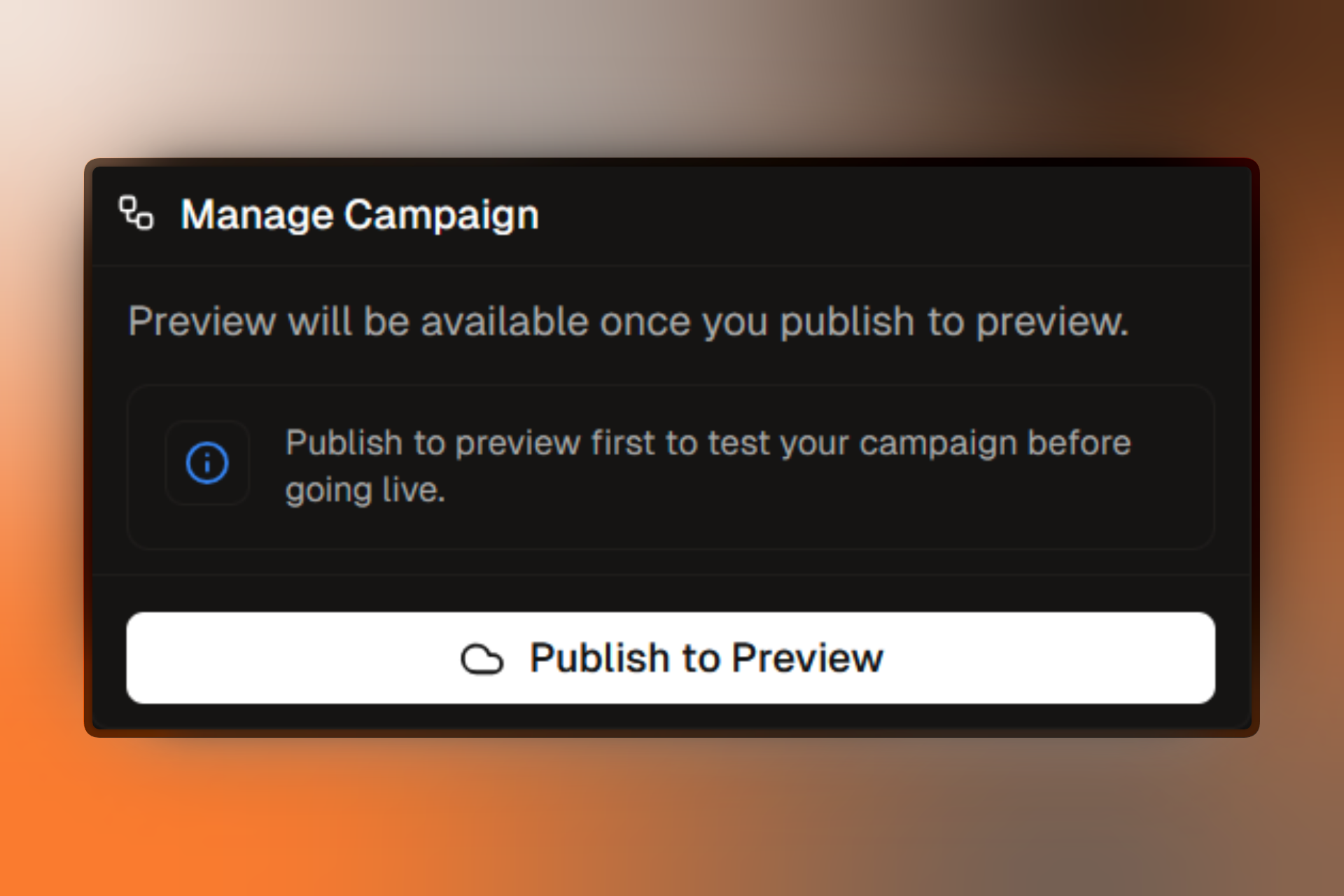
What Happens
- Campaign status changes to Preview
- A preview URL is generated and shown in the status menu
- You can copy the URL and share it for testing
Viewing the Preview URL
After publishing to preview:
- Click the Status Button
- Find the Preview URL section
- Click the copy icon to copy the URL
- Click Open to open in a new tab
Testing Your Preview
Test Checklist
All Pages Load
Visit each variant's landing page and verify they display correctly.
Segments Work
Test with different parameters, devices, or VPNs to verify targeting.
Forms Submit
Test all form submissions and verify lead capture works.
A/B Test Splits
Refresh multiple times to verify you're randomly assigned to different variants.
Testing Different Segments
To test segment targeting in preview:
Geographic targeting:
- Use a VPN to appear from different countries
Device targeting:
- Use Chrome DevTools device emulation
- Test on actual mobile devices
UTM targeting:
- Add UTM parameters to the preview URL
- Example:
preview-url.com?utm_source=facebook
Browser/OS targeting:
- Test in different browsers (Chrome, Safari, Firefox)
- Test on different operating systems
Updating Preview
Made changes and want to see them in preview?
- Make your changes in the Flow Builder
- Click the Status Button
- Click Update Preview
- Refresh your preview URL to see changes
You don't need to go back to Draft status to make changes. Edit your campaign while in Preview status and click Update Preview.
Preview vs. Production
| Aspect | Preview | Production |
|---|---|---|
| URL | Private preview domain | Your custom domains |
| Access | Anyone with URL | Public |
| Analytics | Basic tracking | Full analytics |
| A/B Tests | Simulated assignment | Real traffic split |
| Leads | Test mode (clearly marked) | Real submissions |
Forms submitted in preview mode are marked as test submissions. They won't appear in your main lead reports but can be viewed in test data.
Common Preview Issues
"Preview URL Not Working"
Possible causes:
- Campaign has validation errors
- Preview hasn't been published yet
- Browser is caching an old version
Solutions:
- Check for validation errors in the status menu
- Click "Update Preview" to republish
- Clear browser cache or use incognito mode
"Wrong Variant Showing"
Possible causes:
- Browser cookies are persisting your variant assignment
- Segment rules aren't matching as expected
Solutions:
- Clear cookies or use incognito mode
- Verify segment targeting rules
- Add
?debug=trueto see which segment you matched
"Segment Not Matching"
Possible causes:
- VPN not working correctly for geo-targeting
- Browser not reporting expected values
- Rules are too restrictive
Solutions:
- Verify your VPN is connected to the correct location
- Check browser developer tools for user agent
- Review and broaden segment rules