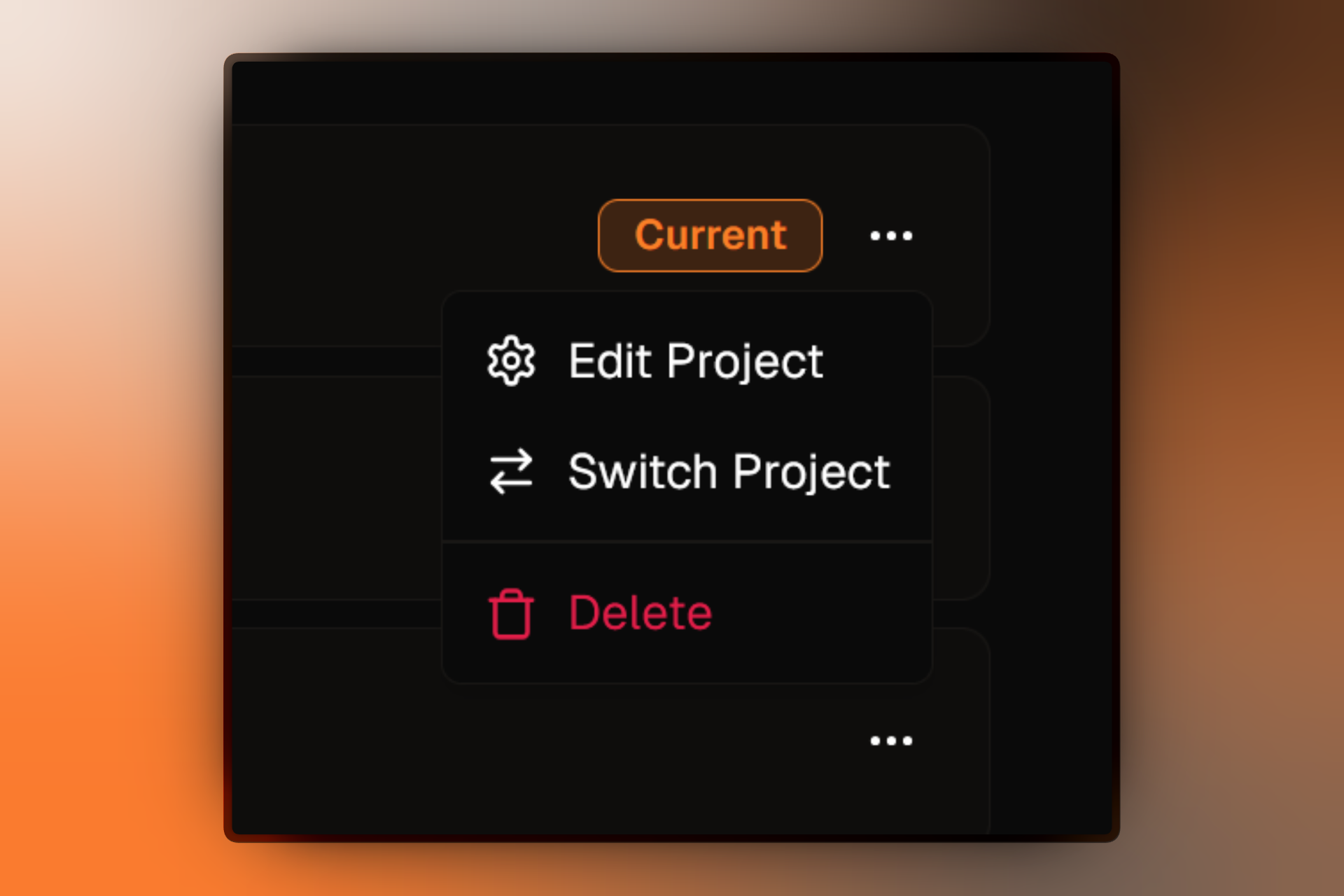
Switching Projects
Learn how to navigate and switch between different projects quickly.
Firebuzz provides multiple ways to switch between projects. Use the method that best fits your workflow.
Using the Project Switcher Dropdown
The project switcher is located at the top of the sidebar and provides the fastest way to switch projects:
- Click on the project name at the top of the sidebar.
- A dropdown menu appears showing all projects in your workspace.
- Click on any project name to switch to it immediately.
Keyboard Shortcuts
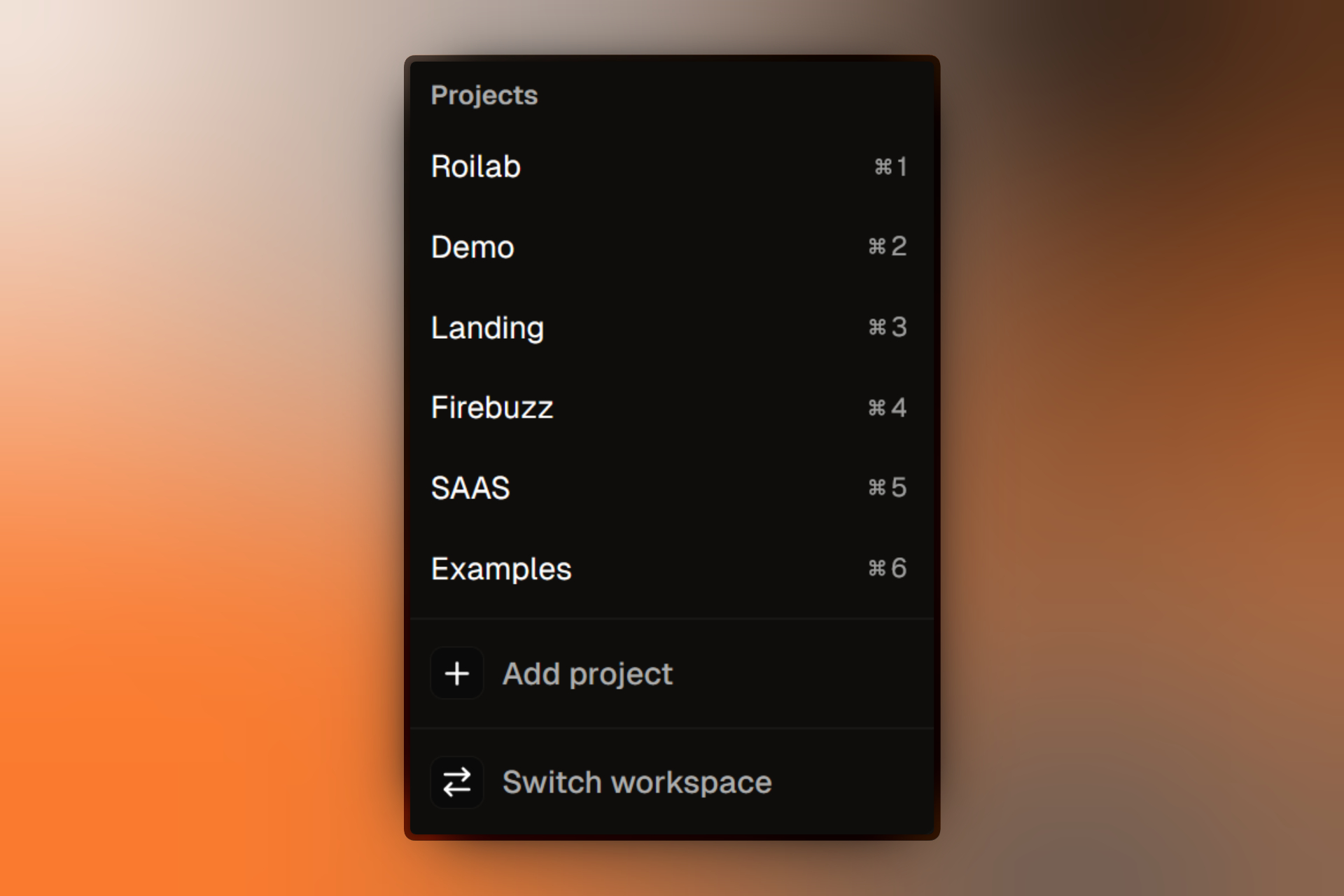
While the project switcher dropdown is open, you can use keyboard shortcuts to quickly switch between your first 9 projects:
- ⌘1 (or Ctrl+1): Switch to the first project
- ⌘2 (or Ctrl+2): Switch to the second project
- ⌘3 through ⌘9: Switch to projects 3-9
Keyboard shortcuts only work when the project switcher dropdown is open. Open the dropdown first, then press the shortcut.
Using the Sidebar Projects List
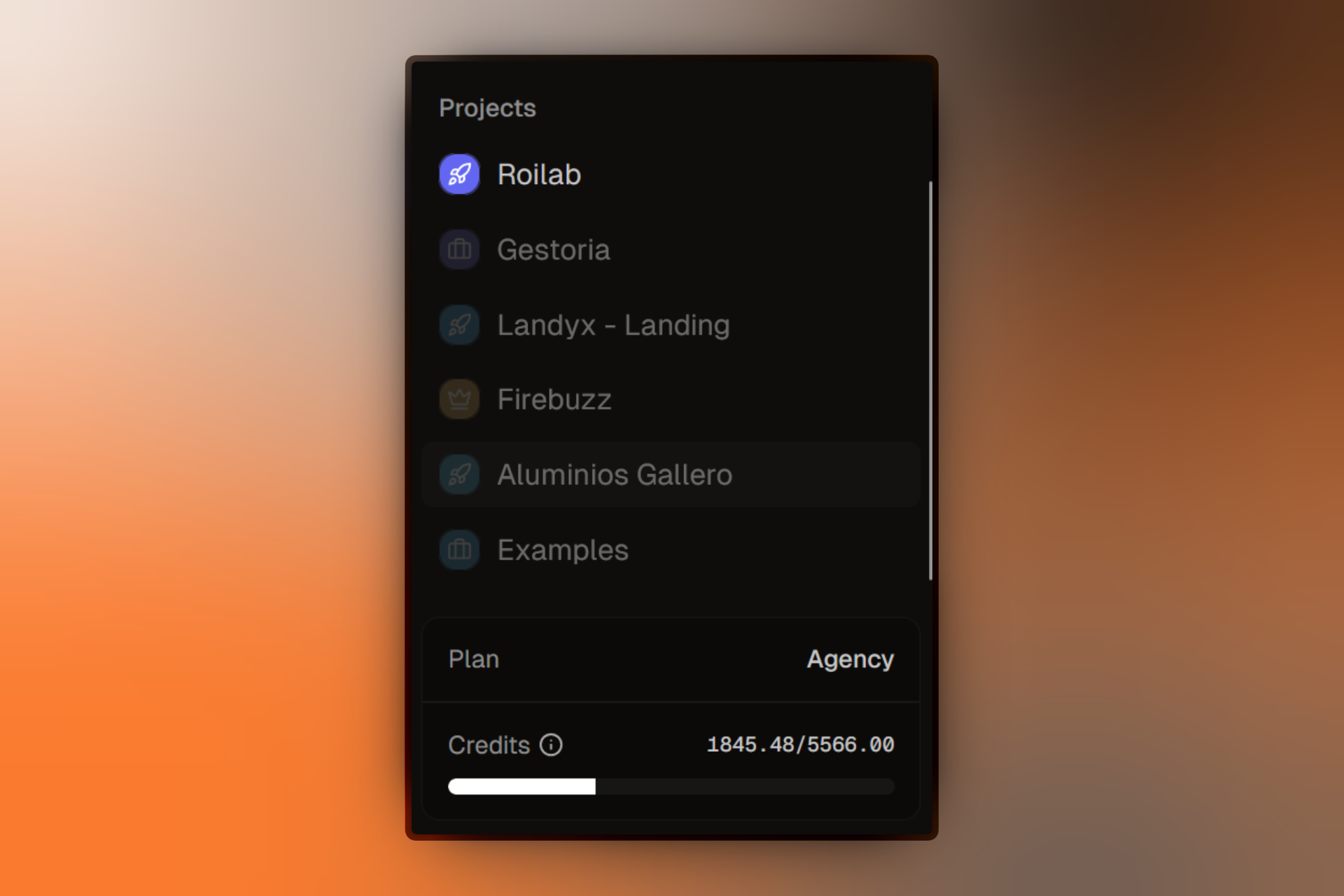
Your projects are displayed directly in the sidebar under the Projects section:
- Each project shows its icon, color, and name.
- The current project appears at full opacity.
- Other projects appear slightly dimmed for visual distinction.
- Click any project to switch to it.
Using the Project Selection Screen
For a full-page view of all your projects:
- Open the project switcher dropdown in the sidebar.
- Click Add project to open the project selection screen.
- Click on any project card to switch to that project.
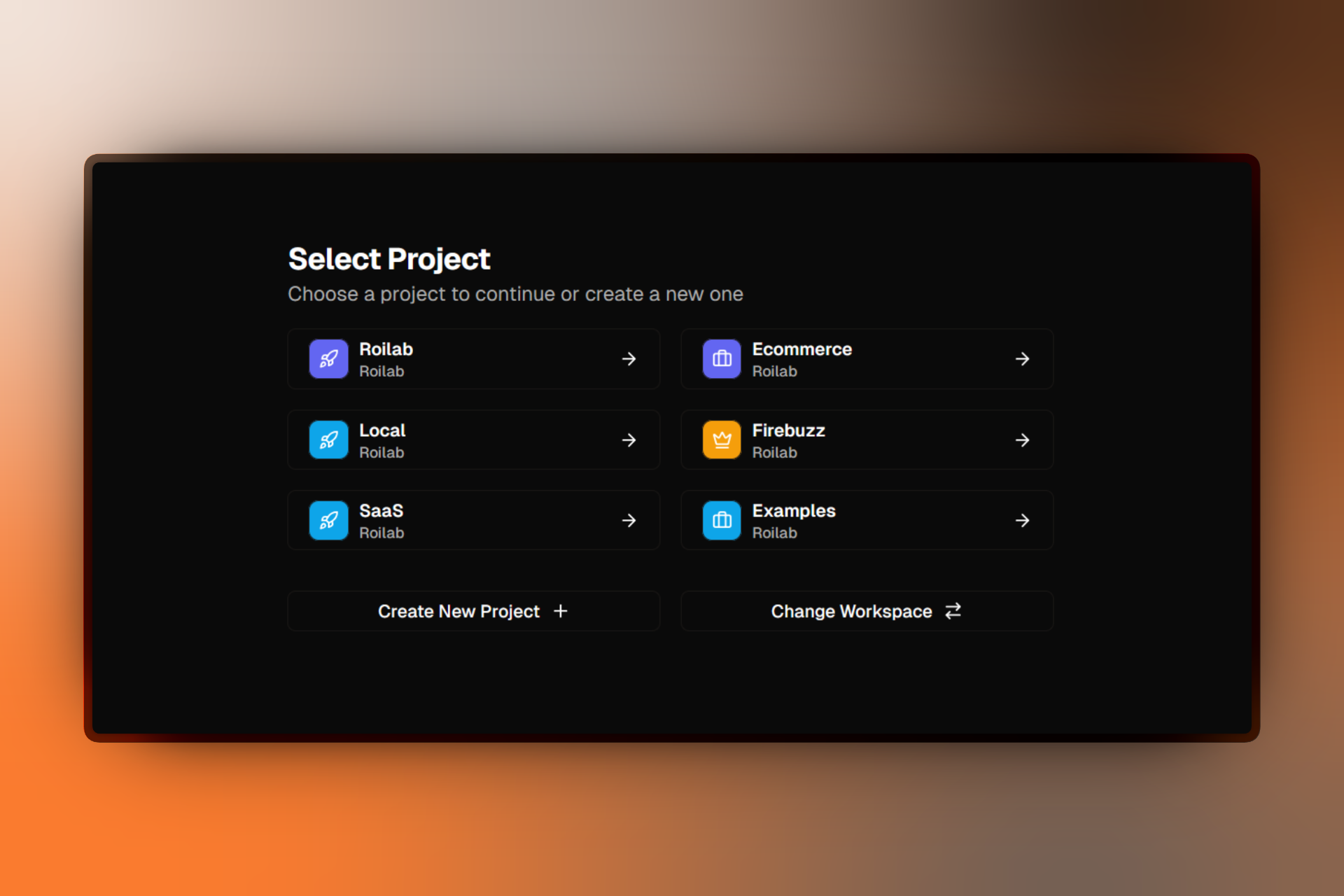
You can navigate directly to /select/project to access the project selection screen at any time.
Switching Workspaces
From the project switcher dropdown, you can also switch to a different workspace:
- Open the project switcher dropdown.
- Scroll to the bottom and click Switch workspace.
- You'll be taken to the workspace selection screen.